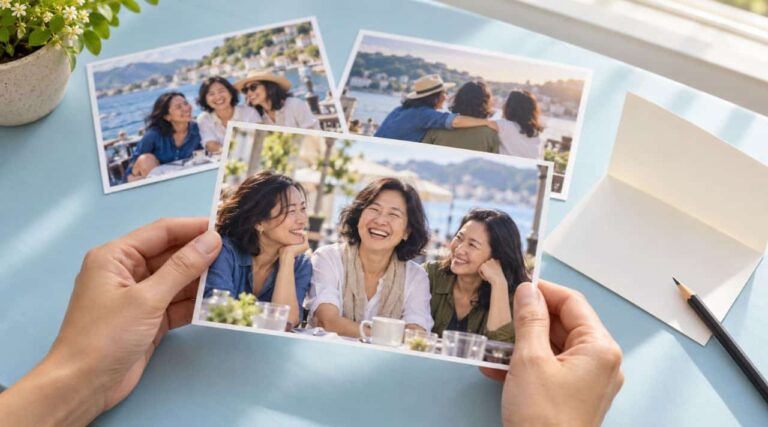
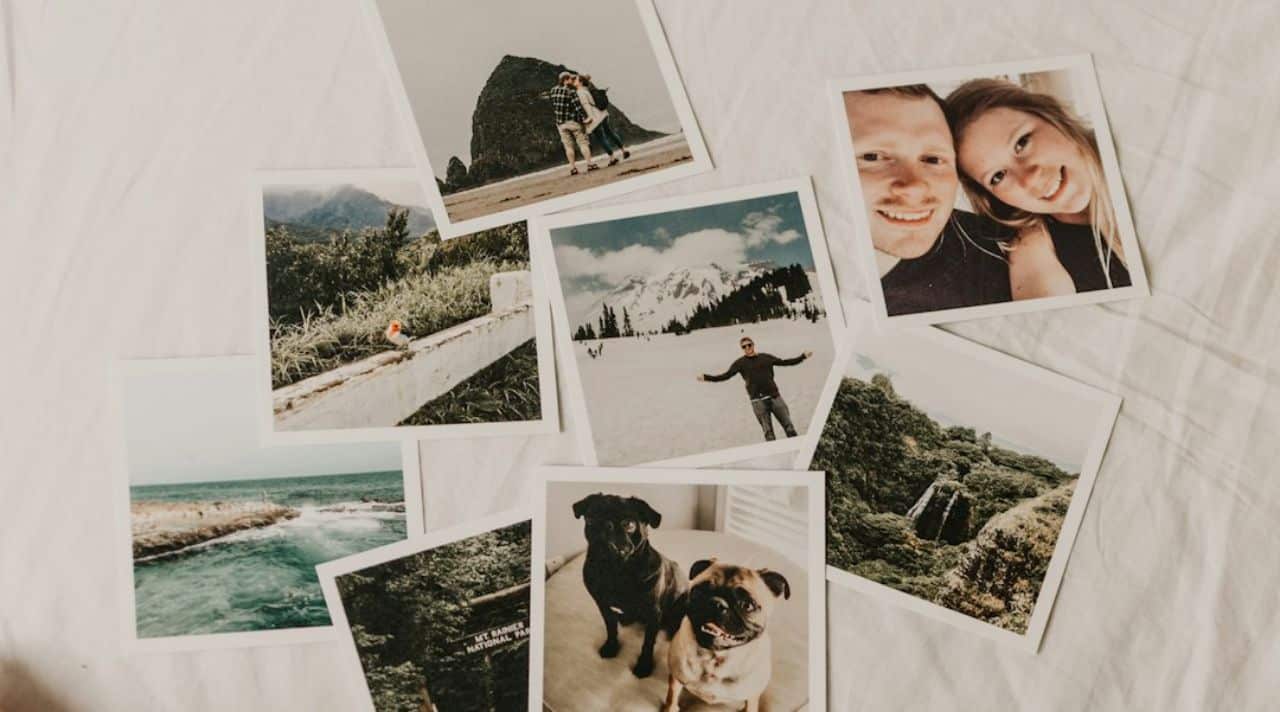

A meaningful photo deserves a format that lets its best details survive the printing process.
You have already found the picture: a family gathering, a beloved pet, or a moment the recipient would recognize instantly. It looks wonderful on your phone. But will that same image still feel right inside an 8×10 frame, across a canvas, or cropped into a personalized keepsake?
A photo is good enough to print when its important details, size, and crop work for the gift you plan to make. It does not need to be technically perfect. Before ordering, check the original file, look closely at the subject, match the pixels to the print size, and inspect the actual product preview. Those checks can help you decide whether to print as planned, go smaller, change the layout, or use a different image.
The goal is not a flawless photograph. It is a gift that preserves what made you choose the photo in the first place. That is also part of choosing a thoughtful custom gift.
Start With the Photo Gift You Actually Want to Make
The same image can work beautifully as a small framed print and disappoint as a large wall piece. Before judging its quality, decide where the photo will go and how large the printed area will be.
A recipient holding a 4×6 print close will notice different things from someone looking at a canvas across a room.
- A small framed print: A little softness in the background may hardly matter if the face or subject remains clear. A small format can be a sensible choice for an older or slightly compressed photo.
- A large frame or canvas: Enlarging the image spreads its available pixels over more space. Stand back as the recipient would when viewing it; also check close-up detail if it will hang somewhere people can approach.
- A shaped photo area on a custom gift: A circle, square, or narrow rectangle may crop out an arm, a pet’s ears, or the setting that gives the memory context. Here, the layout may matter more than a small change in resolution.
If you are still deciding what sort of display gift to make, a display-worthy photo gift is a separate decision.
For now, choose a likely format so you can test whether this particular file will suit it.
Check Whether the Details That Matter Will Stay Clear
Open the best original file you can find – not a screenshot, social-media download, or a copy forwarded through a messaging app if the original is available.
On a computer, view the photo at approximately 100% so one image pixel is represented by about one screen pixel. Then examine the detail the gift depends on, rather than searching every corner for imperfections.
- People: Can you recognize the expression and see the eyes clearly? Is the intended person in focus, even if the background is soft?
- Pets: Are the eyes, face, and distinctive markings recognizable? A little background noise is less important than a smeared face.
- Handwriting or meaningful objects: Will the message, date, or small detail remain readable at the intended print size?
- Movement and compression: Look for doubled edges from motion blur, blocky patches, or smeared fine details. These are different problems from simply having too few pixels.
A treasured photo of grandparents at a reunion may still make a lovely small gift even if the background is grainy. But if the central face is badly blurred, making the print bigger will not restore the expression.
Sharpening may change how edges look; it cannot reliably recover detail that was never captured.
Do not reject an image solely because it looks imperfect at 100% zoom. Also view it at roughly the size the recipient will see. The practical question is whether the part that carries the memory still reads clearly.
How Large Can You Print the Photo Without Losing Too Much Detail?
Find the image’s pixel dimensions, such as 2400 × 3000 pixels. These numbers describe the detail available in the file. A file size in megabytes, or a DPI label by itself, does not tell you how large the image will print well.
To find those dimensions, open the photo’s information or details panel in your phone’s photo app.
On Windows, right-click the file and choose Properties > Details; on a Mac, select the file in Finder and choose Get Info. Look for width and height in pixels, not just the file size in MB.
To estimate the effective pixels per inch (PPI), divide the pixels along one side by the printed length of that same side in inches.
For example, a 2400 × 3000-pixel image printed at 8 × 10 inches gives 300 PPI in both directions if the entire image fits that shape without additional cropping. At 16 × 20 inches, the same file provides 150 PPI.
For a close-viewed photo print, 300 PPI is a useful target rather than a universal pass-or-fail rule. Lower values may still look acceptable depending on the image, printing process, and viewing distance.
Your printing service may have its own recommendations. Adobe’s explanation of image size and resampling provides the underlying technical distinction.
| Planned print size | Pixels for approximately 300 PPI |
|---|---|
| 4 × 6 in | 1200 × 1800 px |
| 5 × 7 in | 1500 × 2100 px |
| 8 × 10 in | 2400 × 3000 px |
These figures are reference targets, not minimum guarantees. A tighter crop throws away pixels, so check the dimensions of the cropped area rather than assuming the original file’s full pixel count will be used.
If your photo is smaller than the target, try the size you actually want in the service preview before deciding it cannot work.
A photo tagged “72 DPI” may still have enough pixels for a beautiful print. What matters is the number of pixels available for the physical size you choose. Simply changing that metadata number does not make a blurry or undersized file sharper.
Check the Crop Before It Cuts Away the Best Part
An image can be perfectly sharp and still become the wrong gift when the printing template removes the part that made it meaningful.
Phone photos, square layouts, 5×7 prints, and 8×10 frames often use different proportions. If the service fills the entire space, some of the photo may be trimmed.
Imagine a photo of two people holding hands. A centered crop may keep both faces but cut away their joined hands. Or a pet portrait may lose the tips of its ears.
The file passes every resolution check, yet the printed gift no longer tells quite the same story.
Choose the actual product and size before inspecting the crop. Look at all four edges and any trim or safe-area guides.
If the preview removes something important, try moving the photo within the frame, selecting a different aspect ratio, or choosing a “fit” option or border when available. A little empty space can be better than losing the detail the recipient will care about.
Do not assume a screen preview shows the precise final trim. Follow the print service’s bleed and safe-area guidance, especially for text, faces, or details near an edge.
What if the Photo Is Meaningful but Not Quite Print-Ready?
This is where the gift decision matters more than chasing a perfect technical score. Start with the smallest change that protects the original moment.
The right fix depends on what is wrong with the file – not every problem can be solved by increasing resolution.
| What you notice | What to try before ordering |
|---|---|
| The file is small or looks compressed | Ask for the original photo or full-resolution export instead of enlarging a screenshot. |
| The subject is slightly soft | Test a smaller print or a format viewed from farther away. |
| The image is dark but details remain visible | Make a modest exposure adjustment, then inspect shadows for new noise or blotches. Check that skin tones still look natural; bright screens can hide a print that will look dark. |
| The main face or meaningful detail is badly blurred | Try another frame from the same moment or a different photo; enlarging will not restore lost detail. |
| The crop cuts away something important | Change the print ratio, reposition the image, add a border, or choose another gift format. |
Be cautious about automatic enhancement and AI upscaling. They can make an image appear cleaner or sharper, but generated detail may change a face, handwriting, or a distinctive feature.
Compare any edited version with the original, especially where accuracy matters to the memory.
If this particular photo cannot hold up in the format you wanted, choosing another meaningful photo may be kinder than forcing a large print.
That does not make the first image less special; it means you are choosing a better way to present the memory.
Make One Final Check Before Ordering the Gift
-
Use the best available original
Upload the full-resolution file where possible, not a screenshot or messaging-app copy.
-
Confirm the size and gift format
Check the dimensions of the printed area, not only the product’s overall dimensions.
-
Inspect the exact crop preview
Look at faces, hands, pet ears, writing, and every edge after selecting the final size.
-
Read any resolution warning
Treat it as a prompt to check the file and size. A warning is not proof the print will fail, and no warning guarantees a beautiful image. Shutterfly’s photo quality guidance explains that its resolution check does not evaluate focus or composition.
-
Consider a test print when the stakes are high
For a large, expensive, or irreplaceable gift, ask whether the service offers a proof or suitable test print. A tiny test print will not prove a much larger print will be sharp.
A final preview is especially important after switching sizes or products: the crop and effective resolution can change even though the source photo has not.
A meaningful photo does not have to be flawless. It does need a format that lets the recipient recognize the people, place, or small detail you wanted to preserve. If the subject is clear, the print size suits the file, and the crop keeps the important parts, you can order with more confidence.
If not, a smaller print, a different layout, or another photograph may be the more thoughtful choice. And when a personal photograph simply will not work, a personalized gift without a personal photo can still mark the memory without asking a weak image to do more than it can.